How to Convert a Video into a GIF: A Beginner-Friendly Guide
convert video to gif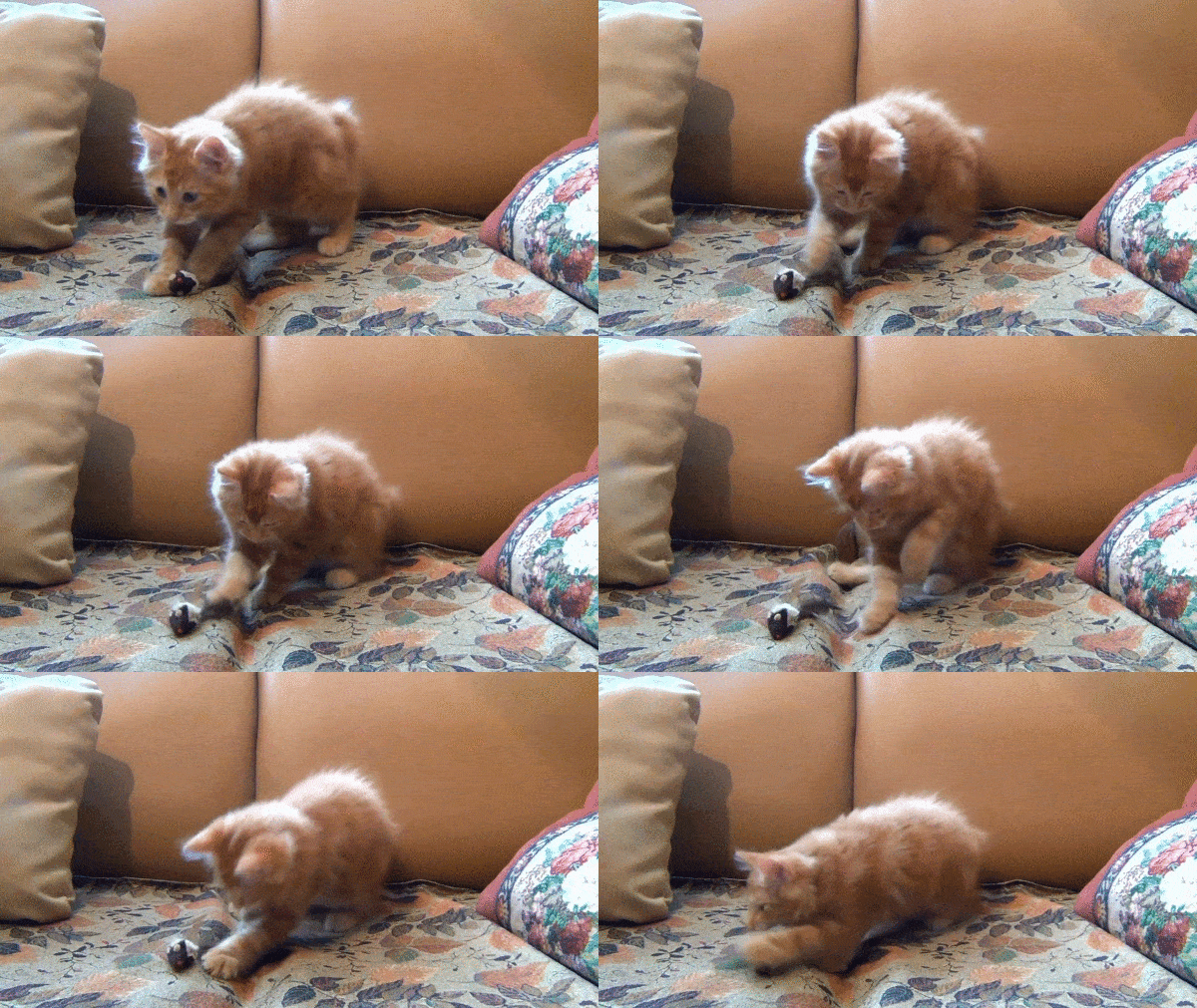
Creating GIF memes from your favorite video clips is easier than you think! This complete beginner-friendly guide will show you exactly how to turn any video into a high-quality GIF in just a few simple steps, with no technical experience or expensive software required.
Whether you want to create reaction GIFs for social media, meme content for your friends, or professional animated clips for your projects, this guide will walk you through the entire process from start to finish.
Operating Method for Converting Videos into GIFs
How can you create a GIF meme from a video? This is a common question for beginners who want to create engaging, shareable content but don't have experience with video editing or GIF creation tools.
The good news is that even absolute beginners can accomplish this with the right GIF-making tool. You don't need to be a graphic designer, video editor, or tech expert to create professional-looking GIFs from your video clips.
When it comes to creating memes and shareable content, most people think of using selected image materials and operating through basic meme-making tools. While this method works for static images, it doesn't help when you have a perfect video moment you want to turn into a looping GIF.
Besides this limited approach, a much more versatile method is to create GIF memes by capturing specific segments from videos. This allows you to extract the perfect moment from any video - whether it's a funny reaction, a memorable quote, or a striking visual - and turn it into a compact, shareable GIF that loops continuously.
You might wonder: After capturing a video segment, how can a static image editing tool help turn it into a dynamic GIF format? This is a common confusion for first-time GIF creators, but the process is actually much simpler than you might think. Don't worry - by the end of this guide, you'll have all the knowledge you need to confidently create GIF memes from any video file on your computer or mobile device.
Many beginners make the mistake of thinking they need expensive software like Adobe Photoshop or complex video editing programs to create GIFs. In reality, there are free, user-friendly online tools specifically designed for this purpose that require no installation, no technical skills, and no prior experience to use effectively.
The key to successful video-to-GIF conversion is choosing the right tool for your needs - one that balances simplicity with functionality, allowing you to create exactly the GIF you want without overwhelming you with unnecessary features or complicated settings.
Introduction to the Video-to-GIF Tool
gifmake.top is a powerful yet easy-to-use online software equipped with multiple GIF-making functions designed specifically for beginners. Unlike complicated desktop applications that require installation and technical knowledge, Gifmake.top works directly in your web browser on any device - computer, tablet, or smartphone - with no downloads or registration required.
It supports a comprehensive range of features that cover all your GIF creation needs, including:
· Combining multiple images into a single animated GIF: Perfect for creating step-by-step tutorials, before-and-after comparisons, or custom animations from your photo collection.
· Converting videos to GIFs: The core feature that allows you to extract any segment from a video file and turn it into a high-quality looping GIF with full control over speed, quality, and duration.
· Editing GIFs: Fine-tune your creations with basic editing tools to adjust playback speed, add text overlays, or modify the animation to perfect your GIF before sharing.
· Cropping GIFs: Remove unwanted parts of your GIF to focus on the important action, optimize for specific social media platforms, or create the perfect square, portrait, or landscape format for different uses.
· Compressing GIFs: Reduce file size without sacrificing quality, making your GIFs load faster on websites and social media platforms while maintaining smooth animation and clear visuals.
These essential functions can meet all your basic and advanced GIF-making needs. Whether you want to create a simple reaction GIF for your friends or a more polished, professional animated clip for your business or personal brand, this intuitive online software can help you achieve your goal without any technical barriers.
For beginners who don't want to deal with overly complex operations, confusing interfaces, or steep learning curves, Gifmake provides a straightforward solution to all your GIF creation challenges. The platform features a clean, intuitive interface with clear instructions at every step, allowing you to easily create high-quality GIF images even if you've never used similar tools before.
One of the biggest advantages of Gifmake.top is its compatibility with all major video formats, including MP4, MOV, AVI, WEBM, and more. This means you don't need to convert your video files to a specific format before creating your GIF - simply upload your video in its original format and the tool will handle the rest automatically.
Additionally, the platform offers generous file size limits (up to 2GB per video), meaning you can work with longer video clips and create GIFs from full-length videos without needing to trim them down first using other software.
Best of all, Gifmake.top is completely free to use with no hidden costs, no watermarks added to your creations, and no limits on how many GIFs you can create. Unlike many other "free" GIF tools that restrict features or add branding to your work, Gifmake.top provides full access to all features at no cost to the user.
Step-by-Step Guide to Convert Video to GIF
Here's a detailed, beginner-friendly step-by-step guide on how to use Gifmake.top to convert any video into a perfect GIF. Follow these simple instructions, and you'll be creating professional-quality GIFs in just a few minutes - no prior experience required:
1 First, prepare the video segment you want to convert into a GIF. This can be any video file on your computer, phone, or tablet - there's no need to edit or trim it beforehand. Then open the Gifmake.top creation tool in your web browser by visiting the official website: https://gifmake.top/. The platform works on all modern browsers including Chrome, Firefox, Safari, and Edge, so you don't need to install any special software or extensions.
Pro tip for beginners: For best results, choose a video segment that's 5-10 seconds long - perfect for capturing the key moment without creating an overly large GIF file that might be slow to load on social media.
2 Once on the Gifmake.top homepage, select the "Video to GIF" function from the main menu - it's prominently displayed and easy to find even for first-time users. Then you have two options to upload your video file: either drag and drop the video directly into the upload area, or click the "Select File" button to browse through your device and choose the video you want to convert.
The upload process is fast even for larger video files, and the progress bar clearly shows how much time remains. Unlike many online tools that have strict file size limits, Gifmake.top allows video files up to 2GB, giving you plenty of flexibility to work with longer video clips.
After uploading, the video will appear in the preview window, allowing you to see exactly what you're working with before proceeding to the next steps.
3 Use the intuitive timeline controls to choose the exact start time and end time of the video segment you want to convert into a GIF. For added convenience, you can use the keyboard shortcuts: press "I" to set the in-point (start time) and "O" to set the out-point (end time) of your GIF clip.
The timeline features clear time markers and a preview window that updates in real-time as you adjust your selection, making it easy to capture the precise moment you want. You can zoom in on the timeline for frame-by-frame precision, ensuring you don't miss the perfect moment in your video.
This precise control is especially useful for creating reaction GIFs, where capturing the exact frame of someone's expression or action is crucial to the impact of the GIF.
4 Customize your GIF by adjusting the playback speed, quality settings, dimensions (size), and frame rate to match your specific needs. The user-friendly interface provides clear sliders and dropdown menus for each setting, with helpful tooltips explaining what each option does for beginners.
· Speed adjustment: Make your GIF play faster for comedic effect or slower to emphasize important details (options range from 0.25x to 4x normal speed).
· Quality settings: Choose from low, medium, or high quality to balance file size and visual clarity - high quality for desktop use, lower quality for faster mobile sharing.
· Size options: Select from preset dimensions (1080P, 480P, 240P) or enter custom dimensions for precise control over your GIF's size.
· Frame rate: Adjust the number of frames per second (FPS) - higher FPS for smoother animation, lower FPS for smaller file sizes.
Once you're happy with your settings, simply click the "Create Now" button to start the conversion process. The tool processes your video quickly, even for longer clips, with a progress indicator showing exactly how much time remains.
5 Wait just a few moments while the tool converts your selected video segment into a high-quality GIF. The processing time depends on the length and quality of your GIF but typically takes only a few seconds even for longer clips.
Once the creation is complete, a preview of your GIF will appear in the window, and a "Download" button will become available. Simply click this button to save your newly created GIF directly to your device - no additional steps or account verification required.
Your GIF is now ready to use! You can share it on social media, send it to friends, embed it in your website, or use it in any other way you choose - all with no watermarks, branding, or usage restrictions.
By now, are you finding it unbelievable how simple the process really is? Many beginners expect creating GIFs from videos to be complicated or require expensive software, but with Gifmake.top, it's actually one of the easiest forms of digital content creation.
It turns out that converting a video into a GIF meme really only takes these five simple steps - no technical knowledge, no complicated software, and no expensive subscriptions required.
If you still doubt its simplicity, there's no need to take our word for it. You can open the Gifmake.top creation website right now, find a short video you like (even a 10-second clip from your phone's camera roll works perfectly), and then follow the operational steps outlined in this article to try it out for yourself.
We're confident that after creating your first GIF, you'll be amazed at how quick and easy the process is, and you'll believe that creating a GIF meme from a video is indeed this straightforward and accessible to everyone.
Even if you've never used any kind of video editing or GIF creation software before, even if you have no design experience or technical knowledge whatsoever, you can still create a dynamic, high-quality meme or GIF that you love and want to share with others.
The best part is that you can experiment with different settings, speeds, and video segments to create exactly the effect you want. Don't be afraid to try different options - the preview function lets you see the results before finalizing your GIF, so you can tweak and adjust until you're completely happy with the outcome.
With practice, you'll find that you can create the perfect GIF for any situation - funny reaction GIFs for your group chats, informative GIFs for your blog or social media posts, or professional animated clips for your business communications.
The above content covers everything you need to know about "How to Create a GIF Meme from a Video." We hope this step-by-step guide has been helpful to you and has demystified the process of video-to-GIF conversion for beginners.
Remember that the key to great GIFs is to keep them short (5-10 seconds is ideal), focus on the most important action or reaction, and optimize them for where you plan to share them (different social media platforms have different ideal dimensions and file sizes).
Frequently Asked Questions for Beginners
No technical skills or prior experience are required to use Gifmake.top effectively. The platform is specifically designed for beginners with a simple, intuitive interface and clear instructions at every step. The entire process is point-and-click, with no complicated settings or technical configurations to navigate. Even if you've never used any kind of video editing or GIF creation software before, you'll be able to create high-quality GIFs from your videos in just a few minutes by following our simple step-by-step guide.
Gifmake.top supports all major video formats including MP4, MOV, AVI, WEBM, WMV, FLV, MKV, and many others. You don't need to convert your video files to a specific format before uploading - simply upload your video in its original format, and the tool will automatically process it correctly. This saves you time and eliminates the need for additional video conversion software, making the entire GIF creation process as simple as possible for beginners.
While technically you can create GIFs of any length (limited only by your original video file size), we recommend keeping your GIFs between 5-10 seconds long for the best results. GIFs of this length are perfect for capturing the key moment or reaction without creating an overly large file that may be slow to load on social media or messaging platforms. The ideal GIF length also depends on where you plan to share it - social media platforms typically favor shorter GIFs (3-5 seconds) for maximum engagement, while personal use or website embedding can accommodate slightly longer GIFs.
Absolutely! Gifmake.top is fully optimized for mobile use on both smartphones and tablets, with a responsive design that adapts perfectly to touchscreens and smaller displays. The interface works just as well on mobile devices as it does on desktop computers, with large, easy-to-tap buttons and controls designed specifically for touch interaction. This means you can create GIFs directly from videos on your phone, without needing to transfer files to a computer first - perfect for creating and sharing content on the go.
Yes! All GIFs you create with Gifmake.top are completely free to use for both personal and commercial purposes, with no restrictions, no watermarks, and no attribution required. Unlike many other "free" GIF tools that add their branding to your creations or limit commercial use, Gifmake.top places no restrictions on how you use the GIFs you create. You're free to share them on social media, use them in business communications, embed them on your website, or distribute them in any way you choose - all at no cost and with complete ownership of your creations.
To optimize your GIF for specific platforms, use the crop and size adjustment features in Gifmake.top to match each platform's ideal dimensions:
· Instagram: Square (1:1) or portrait (9:16) for Stories/Reels
· Twitter/Facebook: Landscape (16:9) or square (1:1)
· TikTok: Portrait (9:16)
· LinkedIn: Landscape (16:9) or square (1:1)
Additionally, use the compression feature to reduce file size for faster loading - aim for under 10MB for most social platforms. The medium quality setting typically provides the best balance between file size and visual quality for social media sharing.
🔥 Make Your First GIF For Free Today
Now that you know exactly how to convert videos to GIFs with our beginner-friendly guide, it's time to create your own high-quality GIFs! No registration, no technical skills, no watermarks - just upload your video and create perfect GIFs in seconds.
gifmake.top →【video to gif】Join over 3.5 million beginners who have discovered how easy it is to create professional-quality GIFs from any video!